
The Appointments section helps you stay organized and connected with your providers. Here, you can view, schedule, and manage your therapy all in one place.
How to Manage Your Appointments
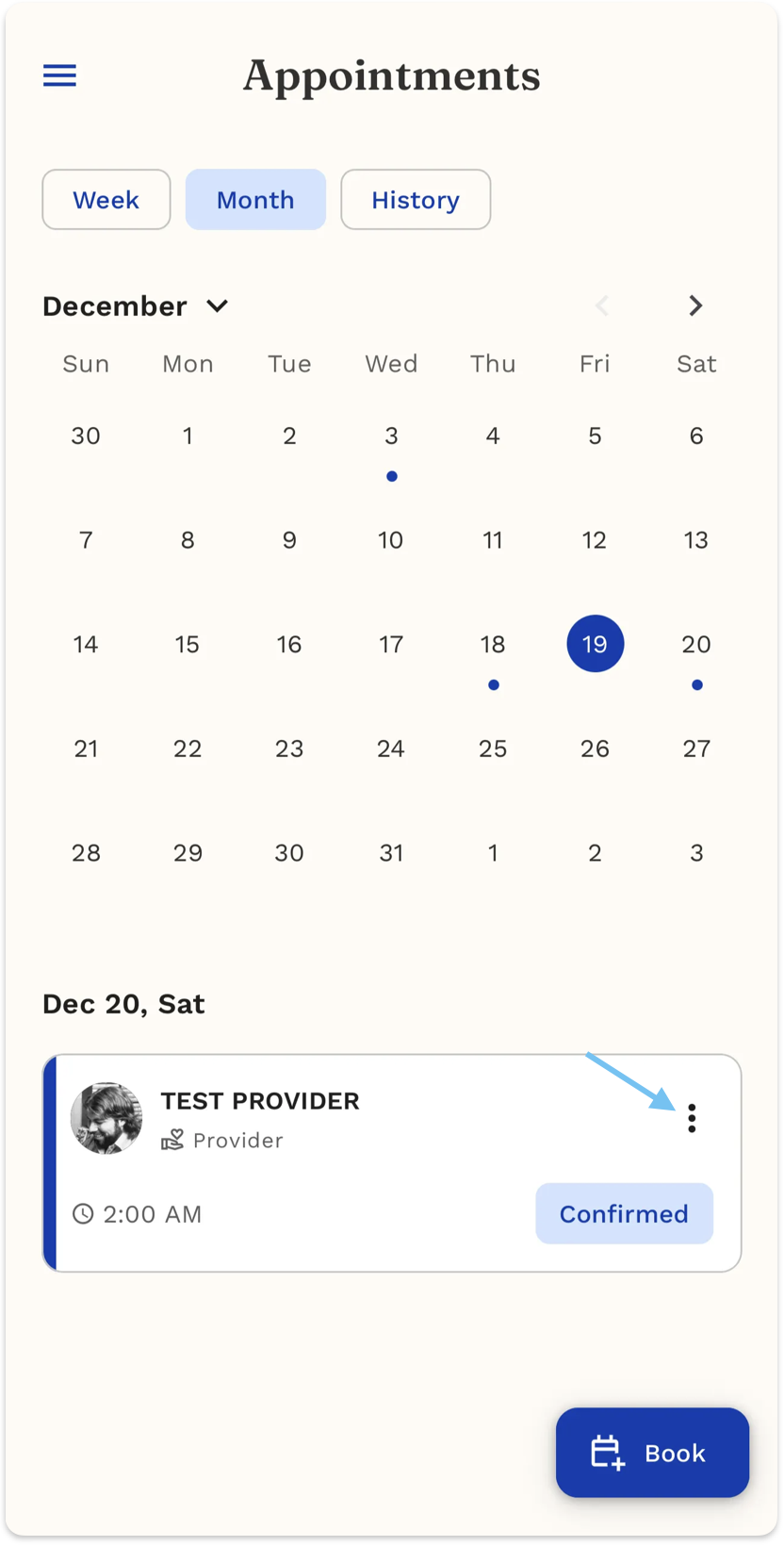
View Your Appointments
- Open the Appointments section from your app menu
- Choose how you want to view your appointments:
- Week - See your upcoming week
- Month - View the full calendar month
- History - Review past appointments
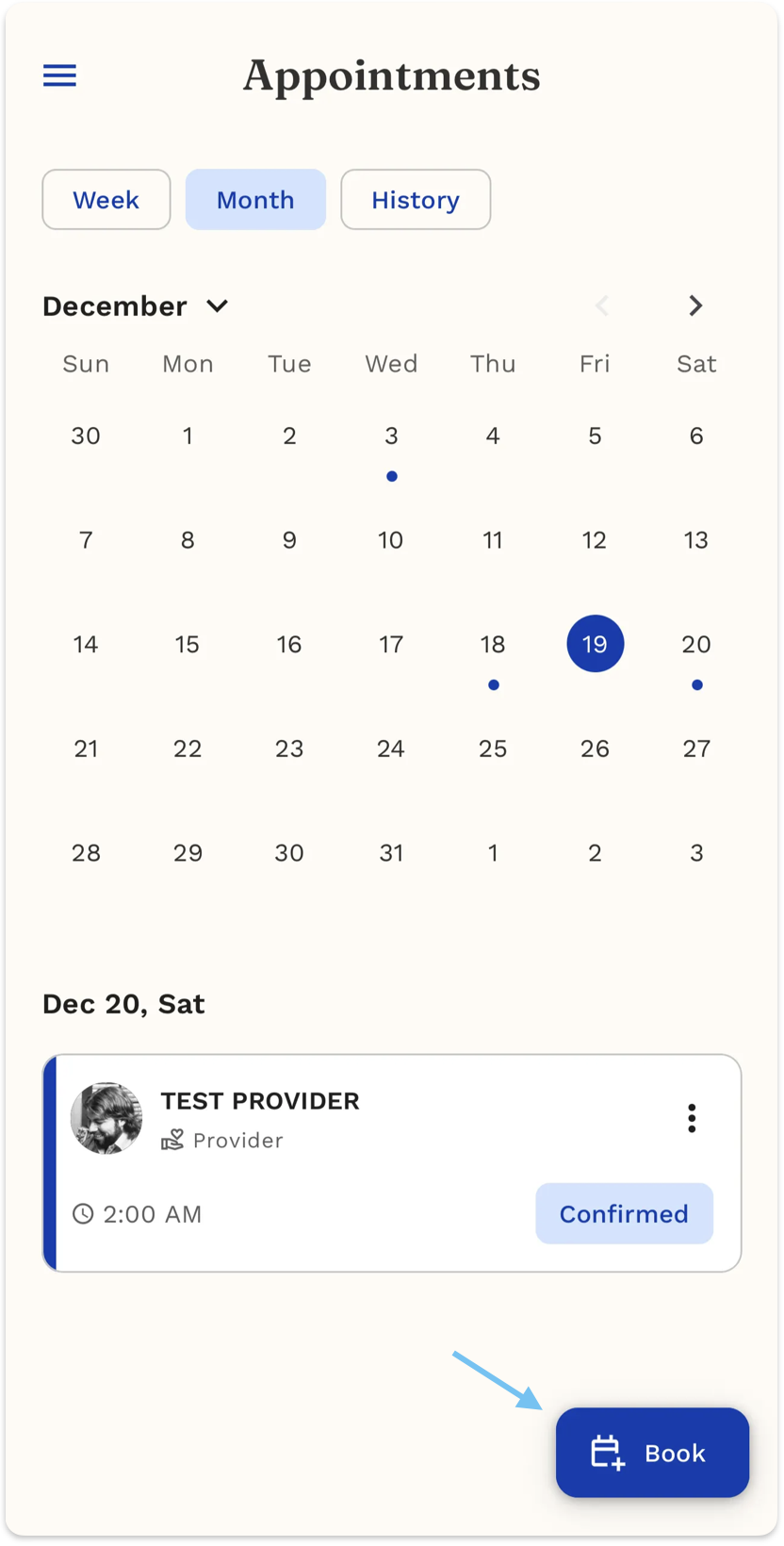
- Dates with a blue dot have scheduled appointments
- Today's date is highlighted with a blue circle
Check Appointment Details
- Tap on any date with an appointment (marked with a blue dot)
- Your appointment card will show:
- Provider name and photo
- Appointment time
- Status (Confirmed, Pending, or Cancelled)
- Tap the three dots (⋮) on the appointment card for more options
Reschedule an Appointment
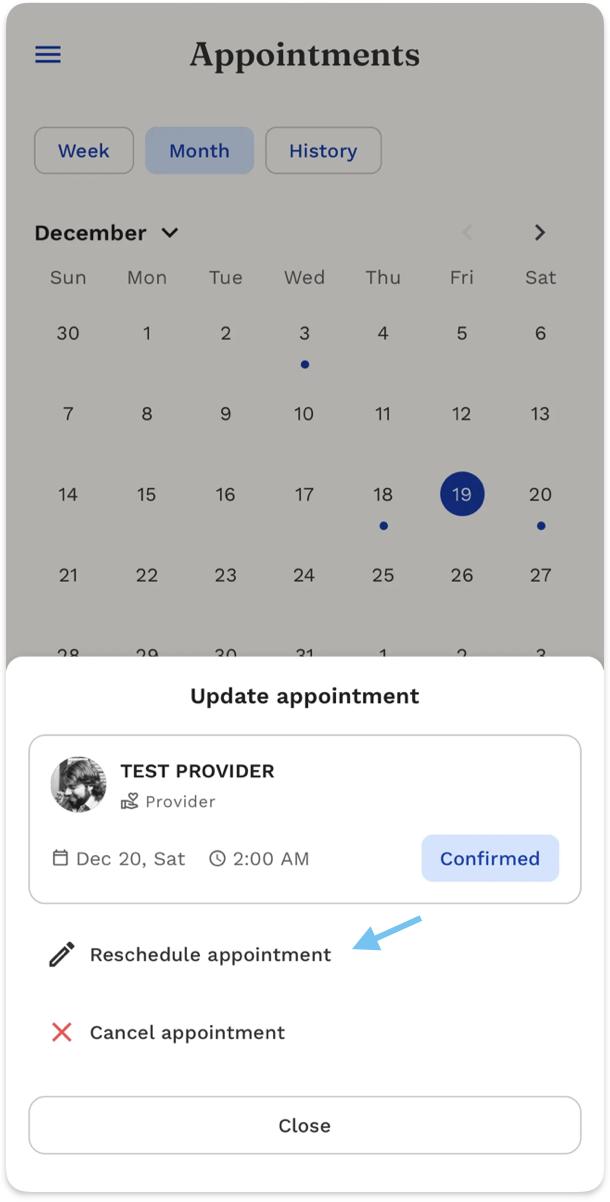
- Tap the three dots (⋮) on your appointment card
- Select Reschedule
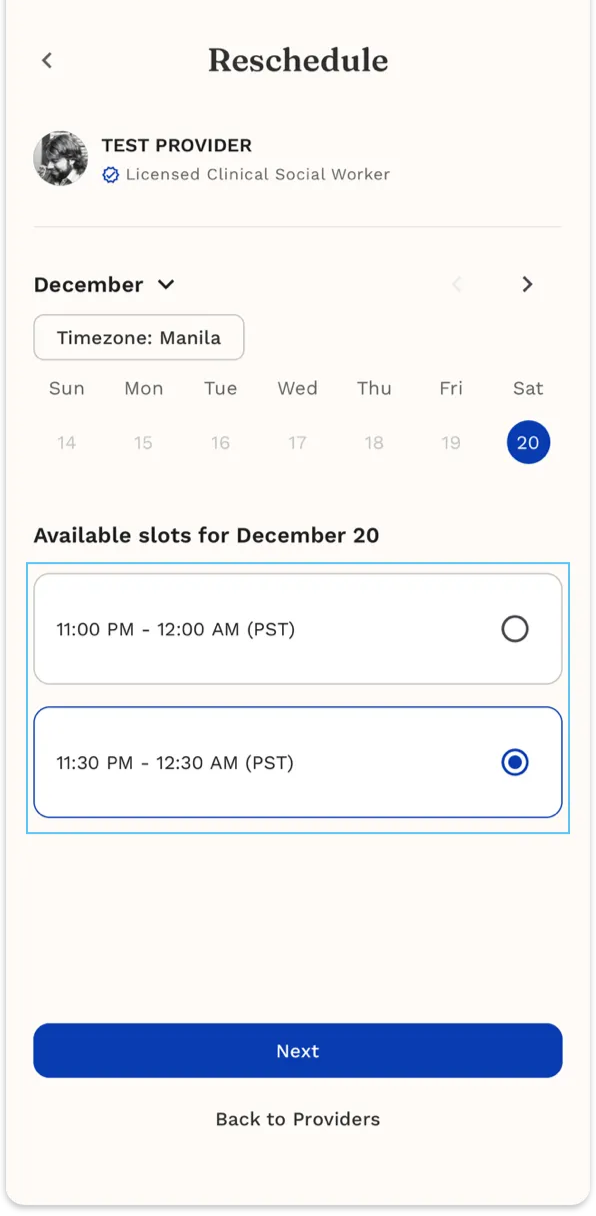
- Choose a new available date and time
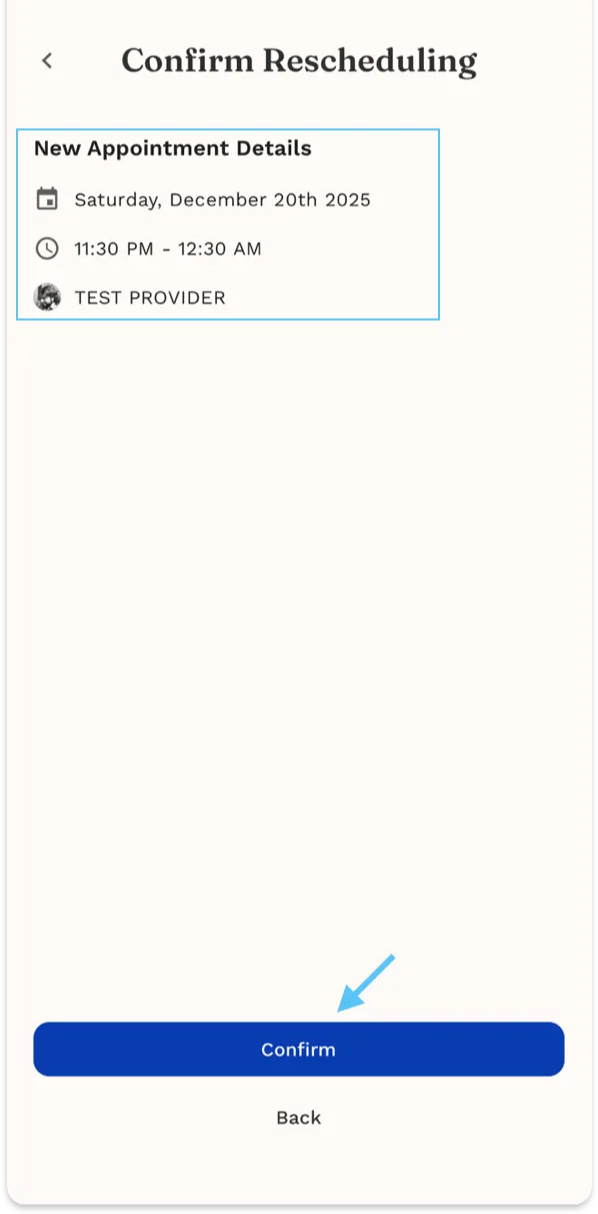
- Confirm your new appointment
Cancel an Appointment
- Tap the three dots (⋮) on your appointment card
- Select Cancel
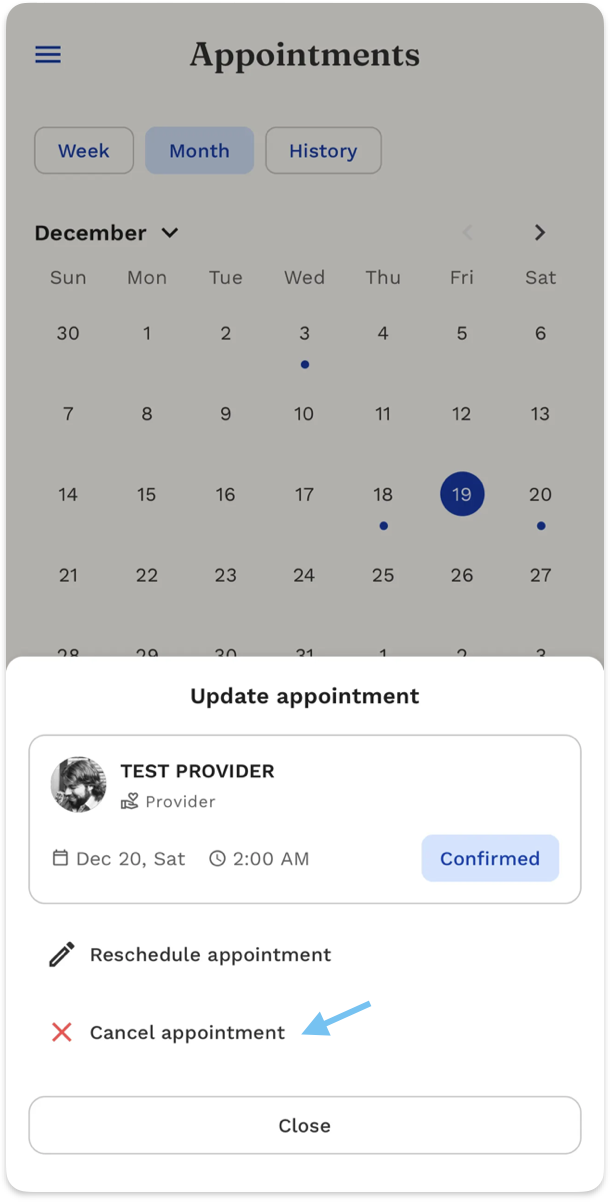
- Review any cancellation fees (if applicable)
- Confirm cancellation.
Book a New Appointment
- Tap the Book button at the bottom of the screen
- Select your provider
- Choose an available date and time
- Confirm your booking
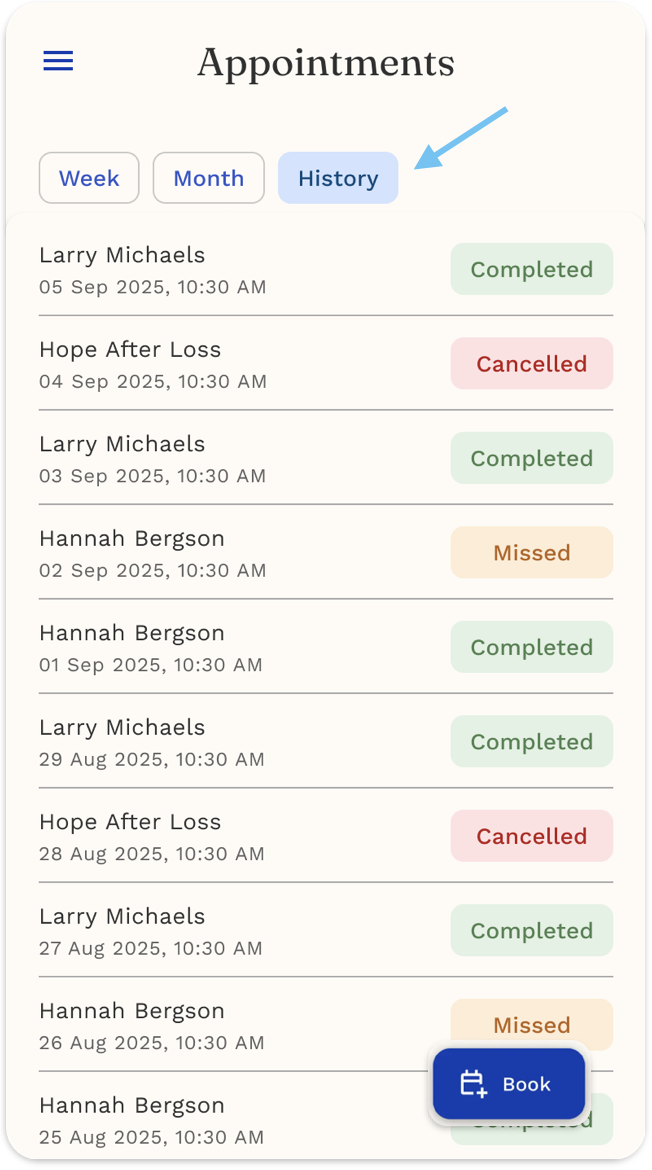
View Your History
- Go to the Appointments tab.
- At the top, select the “History” button.
- You’ll see a list of all your past individual and group sessions, including their status:
- Completed
- Missed
- Cancelled
Tips
💡 Keep notifications on — you’ll get automatic reminders before every session.
📅 Reschedule early to secure better time slots.
💬 Use Carebot between sessions for extra support or reflection.