
The Plans section is where you can view and sign important documents created by your provider, such as your Treatment Plan or Safety Plan. These plans help outline your goals, focus areas, and the support you’re receiving in care.
How to find your Plans
- Open the ReachLink app.
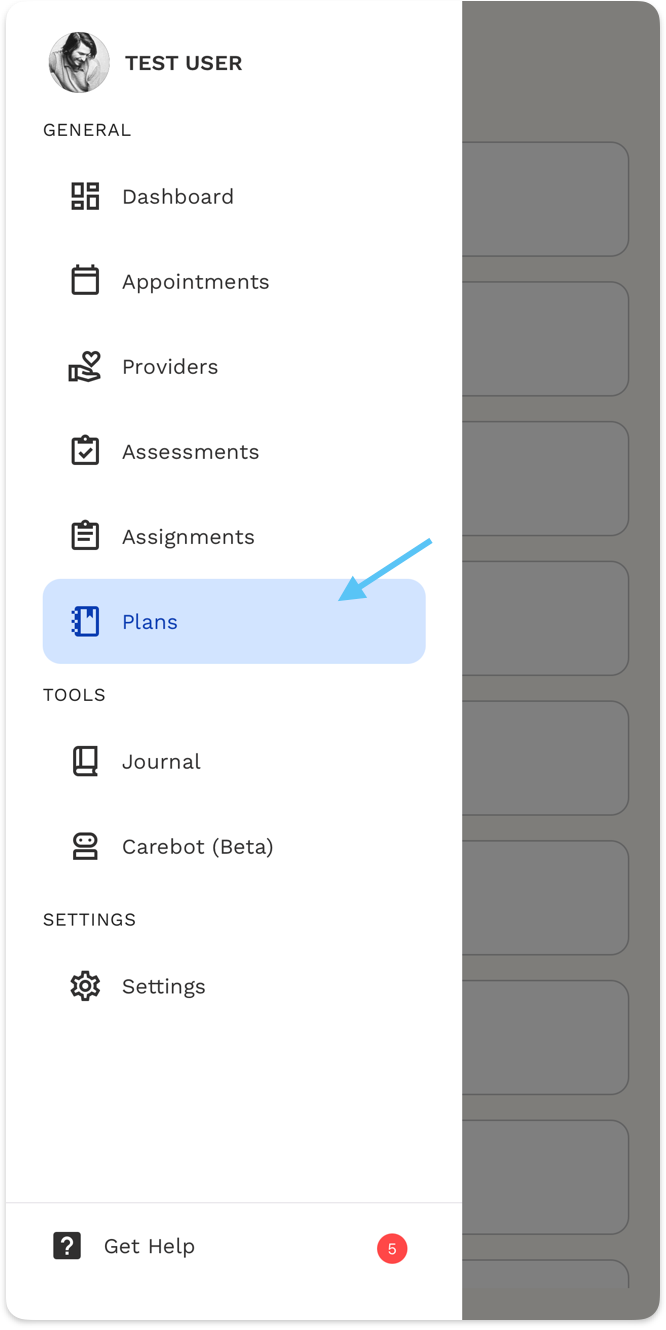
- Tap Plans from the menu.
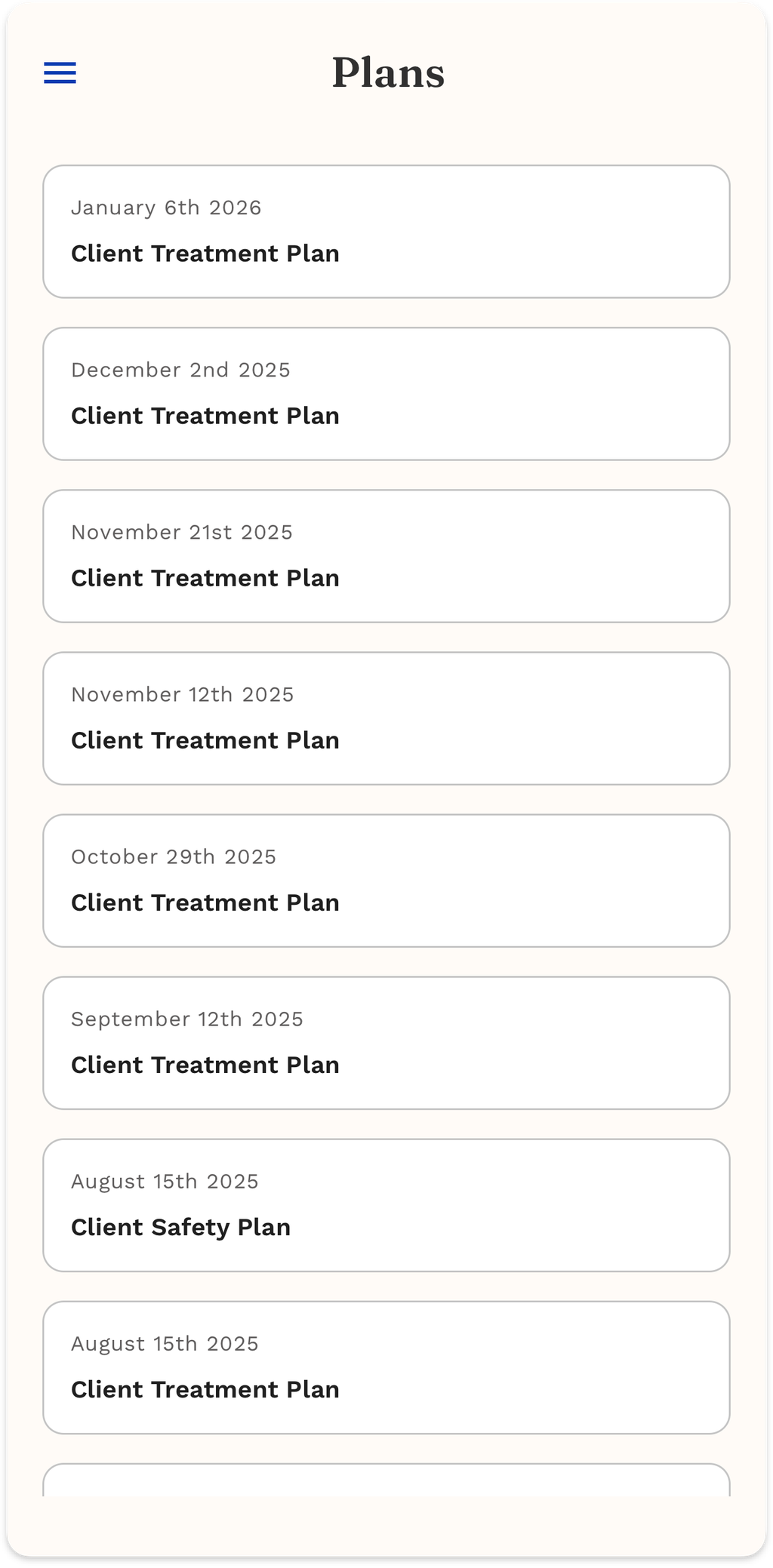
- You’ll see a list of your plans, organized by date.
How to sign a Treatment Plan
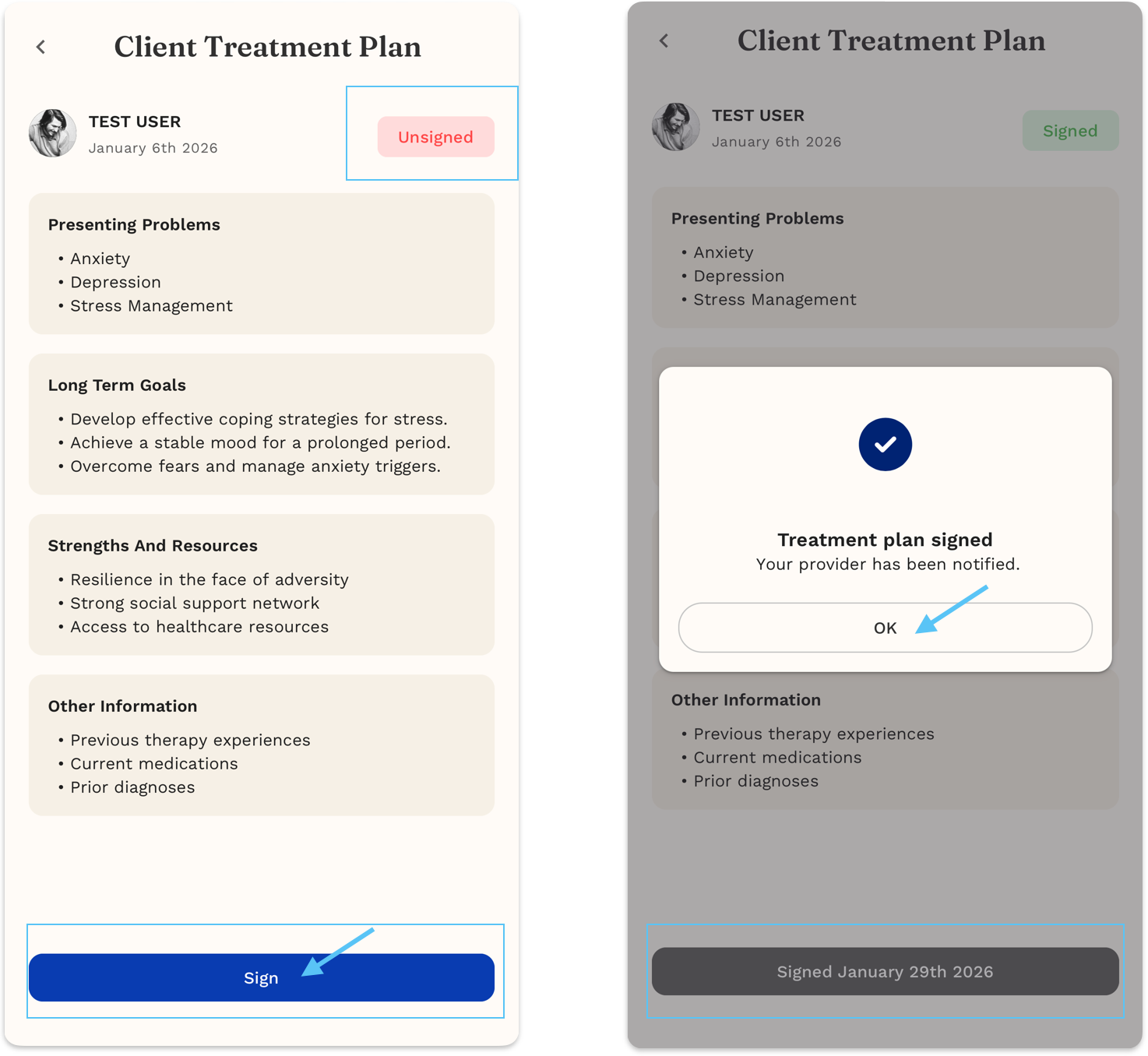
- Open the plan you want to review.
- Read through each section carefully.
- Tap Sign at the bottom of the page.
- You’ll see a confirmation message letting you know your provider has been notified.
Once signed, the plan will show as Signed with the date it was completed.
What “Signed” means
- You’ve reviewed and agreed to the plan.
- Your provider is notified that the plan is complete.
- The plan becomes part of your care record.
Common questions
Why do I see multiple plans?
Your provider may update or create new plans as your goals or care needs change.
Can I edit the plan?
Plans are created by your provider. If you’d like changes, reach out to them and they can update it for you.
Helpful tips
- Take your time: Review each section before signing.
- Ask questions: If something doesn’t look right, discuss it with your provider before signing.
- Check for updates: You may see new plans over time as your care evolves.