Assignments may include reflections, exercises, educational materials, or wellness tasks. You can view your assignments, complete them at your own pace, and track your progress.
How to Access
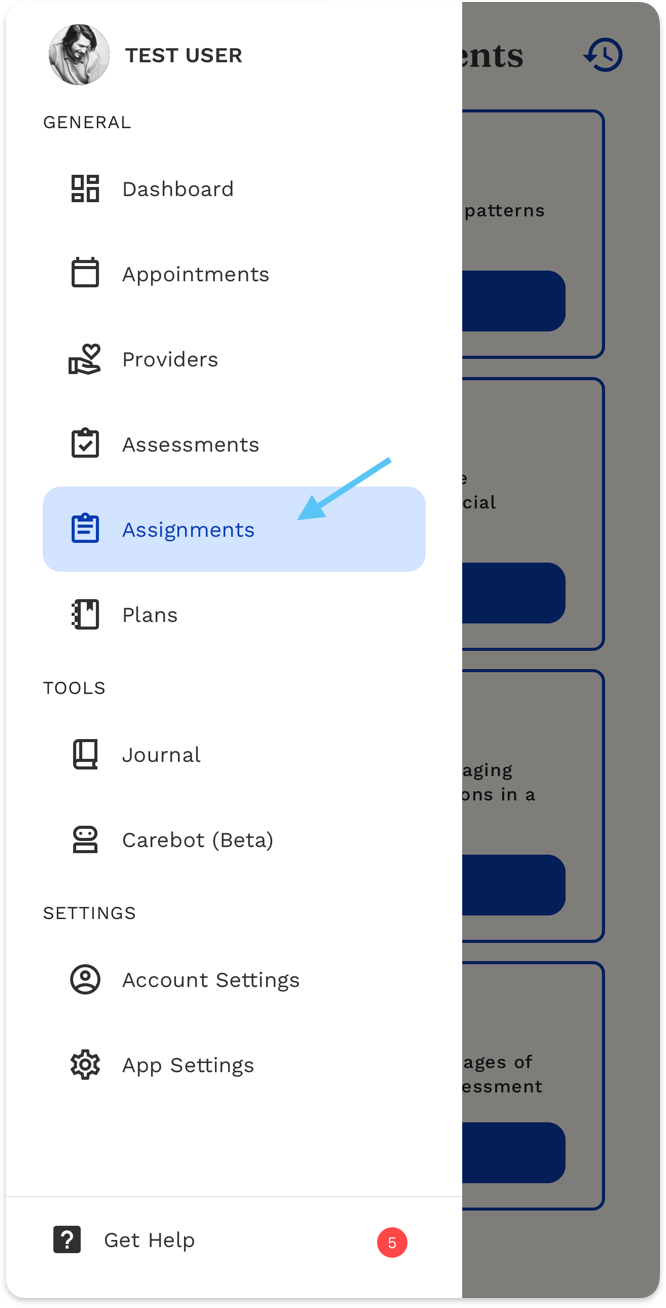
- Open the ReachLink app.
- Tap the menu (☰) icon.
- Select Assignments.
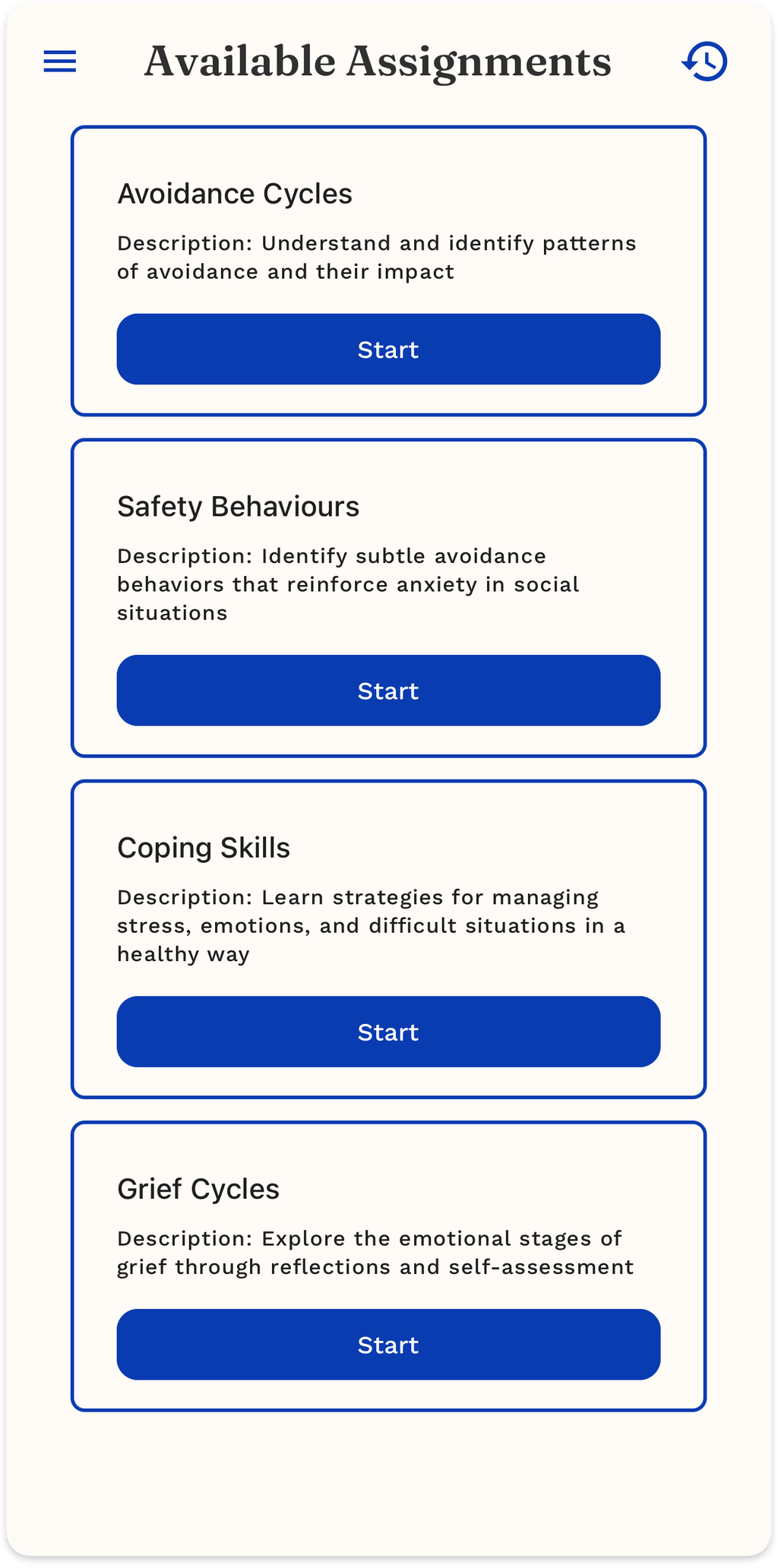
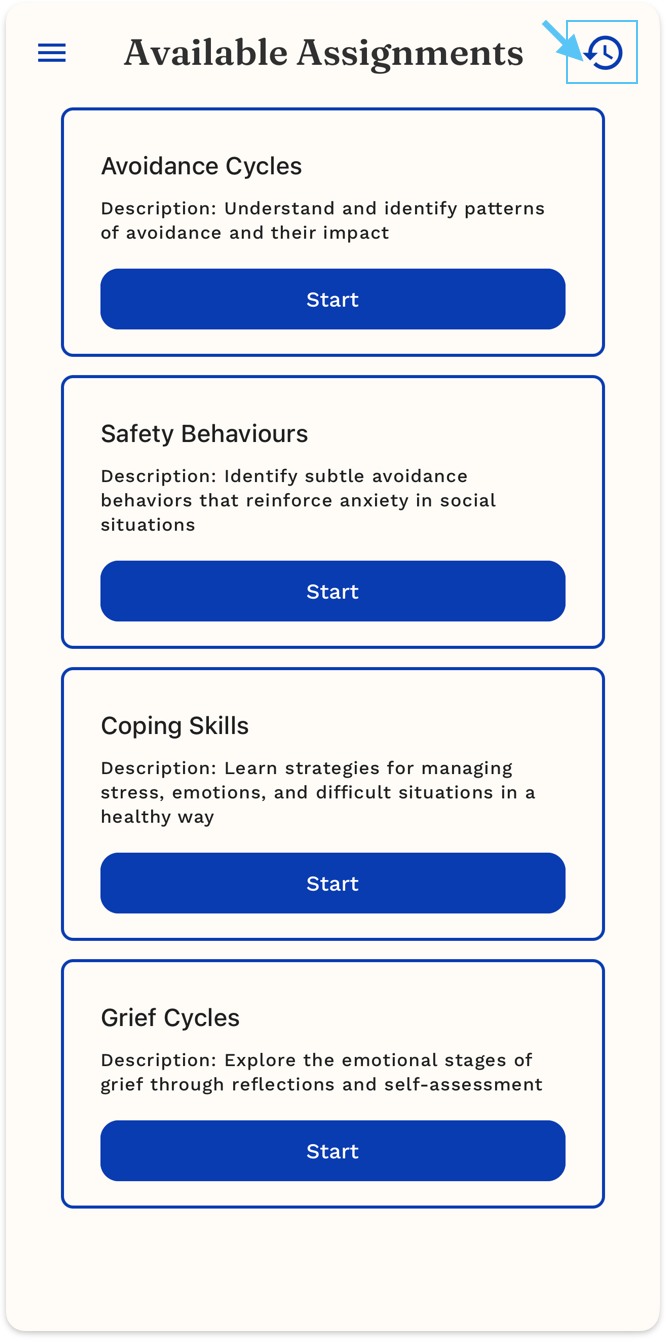
What You’ll See - Available Assignments.
- Scroll to find the assignment you want.
- Read the title and description on the card.
- Tap Start to begin the assignment.
- Follow the on-screen prompts to complete it.
How to Complete an Assignment
- Tap an assignment and press Start.
- Follow each step and type your responses.
- Tap Next to move forward or Previous to review.
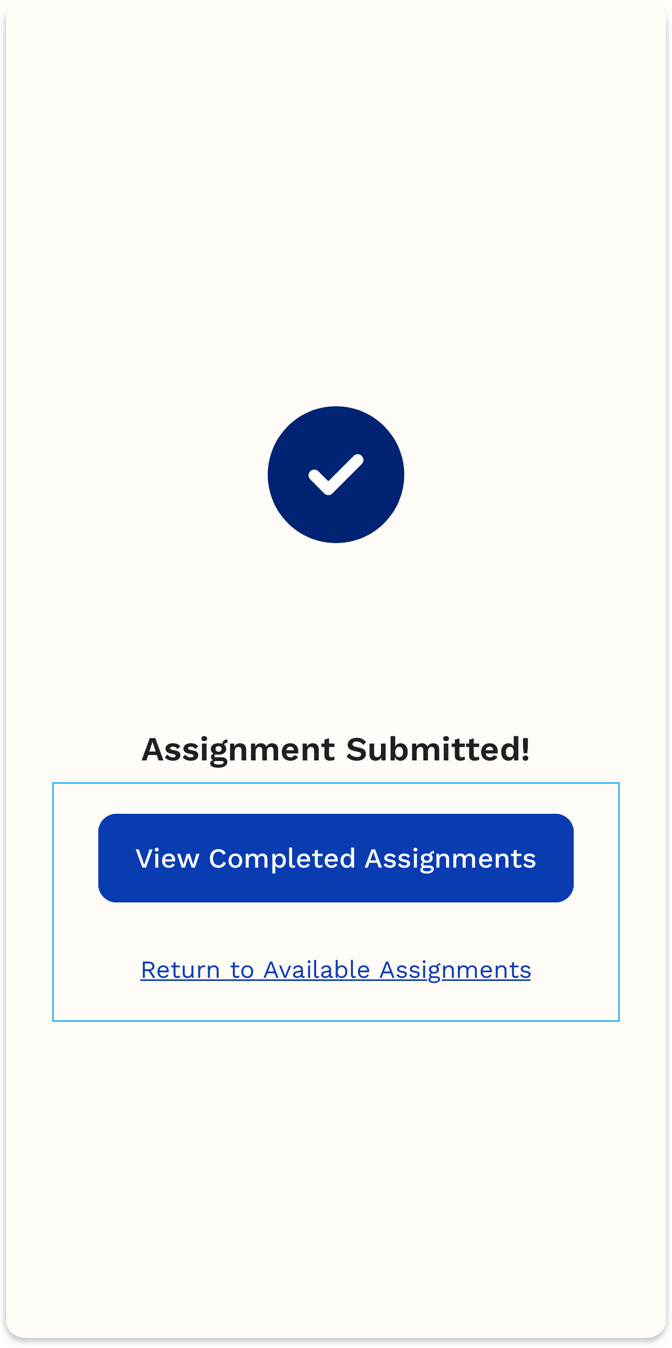
- When finished, you can view your completed assignments or return to available assignments.
How to View Completed Assignments
- Tap the history icon in the top-right corner.
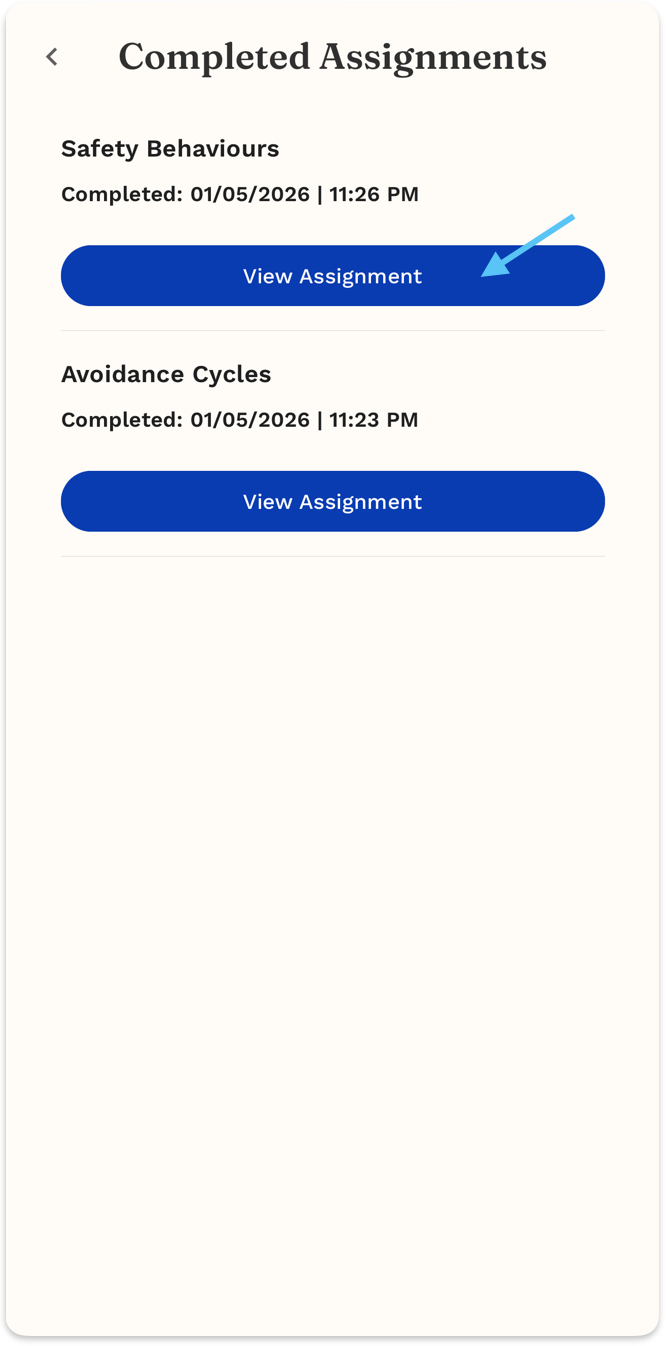
- You’ll be taken to Completed Assignments.
- Find the assignment you want to review.
- Tap View Assignment to open it.
Tips
- Completed assignments are listed with the date and time they were finished.
- Tap View Assignment to review your responses and reflections.
- Revisiting completed assignments can help track progress over time.
- Use completed assignments as reference points for future sessions.