
What You Can Do Here
Lets you upload, search, download, and manage documents you’ve shared in your account.
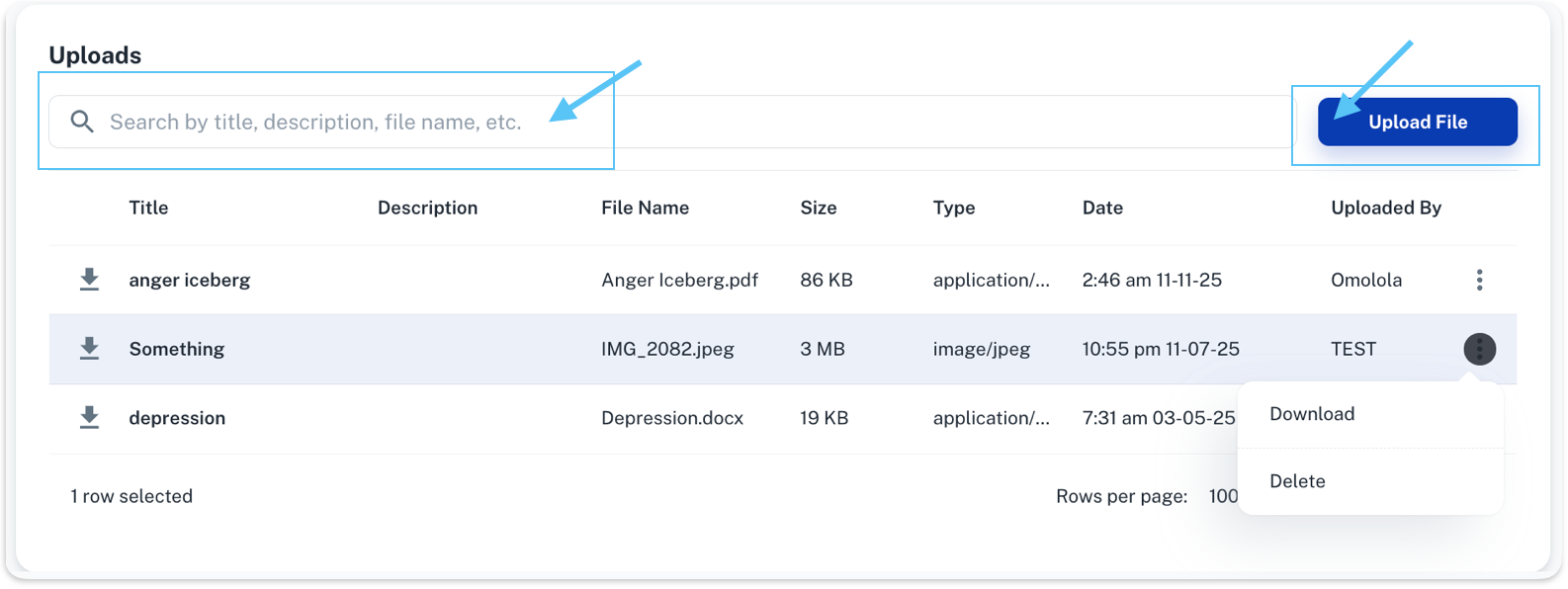
Searching Your Uploads
You can use the search bar to find files by:
- Title
- Description
- File name
This helps you quickly locate older uploads without scrolling.
Uploading a File
To add a new file:
- Click Upload File
- Select the file from your computer
- Confirm the upload
Once uploaded, the file will appear in the table.
Downloading a File
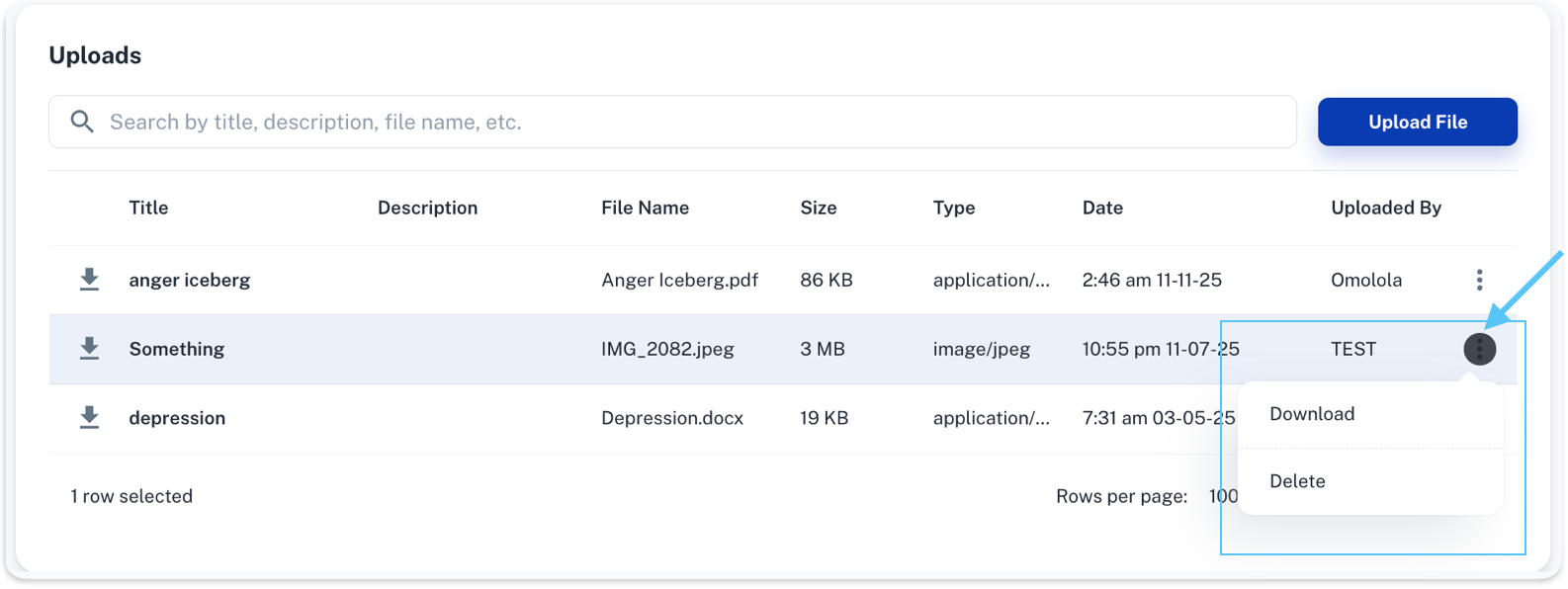
To download a file:
- Find the file in the list
- Click the menu icon (three dots)
- Select Download
Deleting a File
If you no longer want a file stored in your account:
- Click the menu icon (three dots)
- Select Delete
Note: Deleting a file removes it from your account and cannot always be undone.
If You’re Having Issues
- Upload button not working → Try refreshing the page or uploading a smaller file
- Can’t find a file → Use the search bar and check the file name
- Download fails → Try a different browser or check your internet connection