ReachLink doesn't send you a link to join your session. If you're waiting on an email or text with a link, you don't need one.
Your session happens inside ReachLink itself. How you join depends on your device:
Your device | How to join |
Computer (laptop or desktop) | Use a web browser. Log in at reachlink.com. Google Chrome works best. |
Phone or tablet | Use the ReachLink app. Download the ReachLink app if you don't have it yet. |
On a phone or tablet, sessions only work in the ReachLink app. They won't open in a phone or tablet web browser, even if you can log in there.
Then go to Appointments, find your session, and tap Start Session.
The reminders you may receive by text or email are just that — reminders. They tell you when your session is, not how to get in.
The Start Session button appears 15 minutes before your session. If it's earlier than that, the button won't be there yet. That's normal.
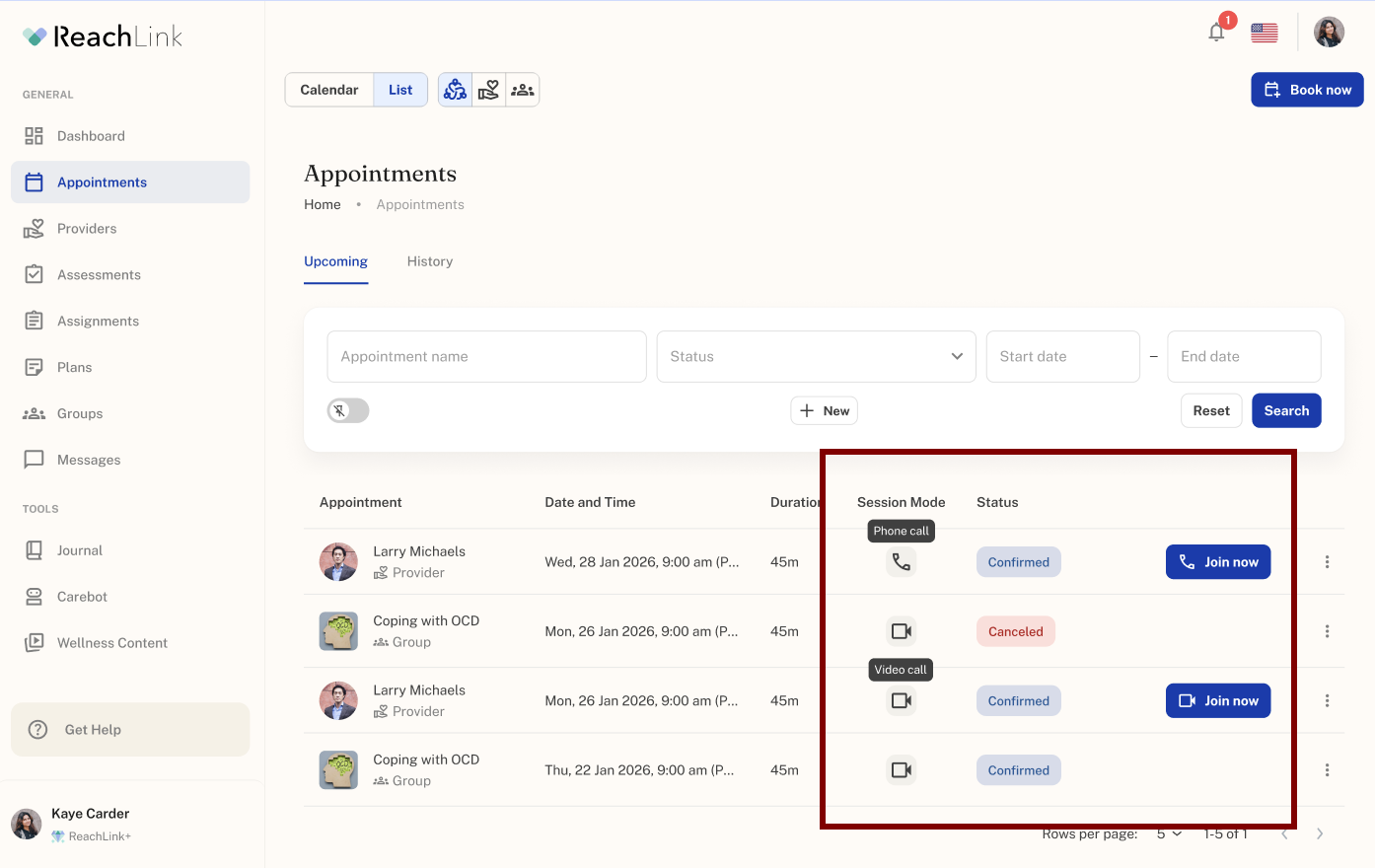
Where to Find the "Start Session" Button
You can join your session from two places:
- Dashboard
- Appointments tab
When the Button Appears
The Start Session button becomes available 15 minutes before your appointment time.
If it's earlier than 15 minutes, the button will not show.
Can't get video working? Switch to a phone call
If you're in the video waiting room and video won't cooperate, you don't have to miss your session:
- Find the Prefer to join by phone? card (on mobile, it's on Session Details above Join session).
- Click Start phone call, then confirm.
- Answer the call from 850-446-8707. ReachLink connects you and your provider.
Problem 1: "I Can't Find the Start Session Button"
Possible Causes
- It's too early (more than 15 minutes before your session)
- You're on the wrong screen
- You're on a phone or tablet browser instead of the ReachLink app
- The app or browser is not refreshing properly
- Your session is a phone call — look for Join now with a phone icon instead
Try This
- Make sure it is within 15 minutes of your session time.
- On a phone or tablet, open the ReachLink app instead of your browser.
- Check both:
- Dashboard
- Appointments → Upcoming
- Refresh the page
- Log out and log back in
If it is within the allowed time window and the button still does not appear, continue with the steps below or contact support for urgent help.
Problem 2: "I Click Start Session, but Nothing Happens"
Most Common Cause
Your browser or device is blocking the session from opening.
Common blockers include:
- Pop-up blockers
- Redirect settings
- Browser privacy restrictions
- Device permissions
Try This
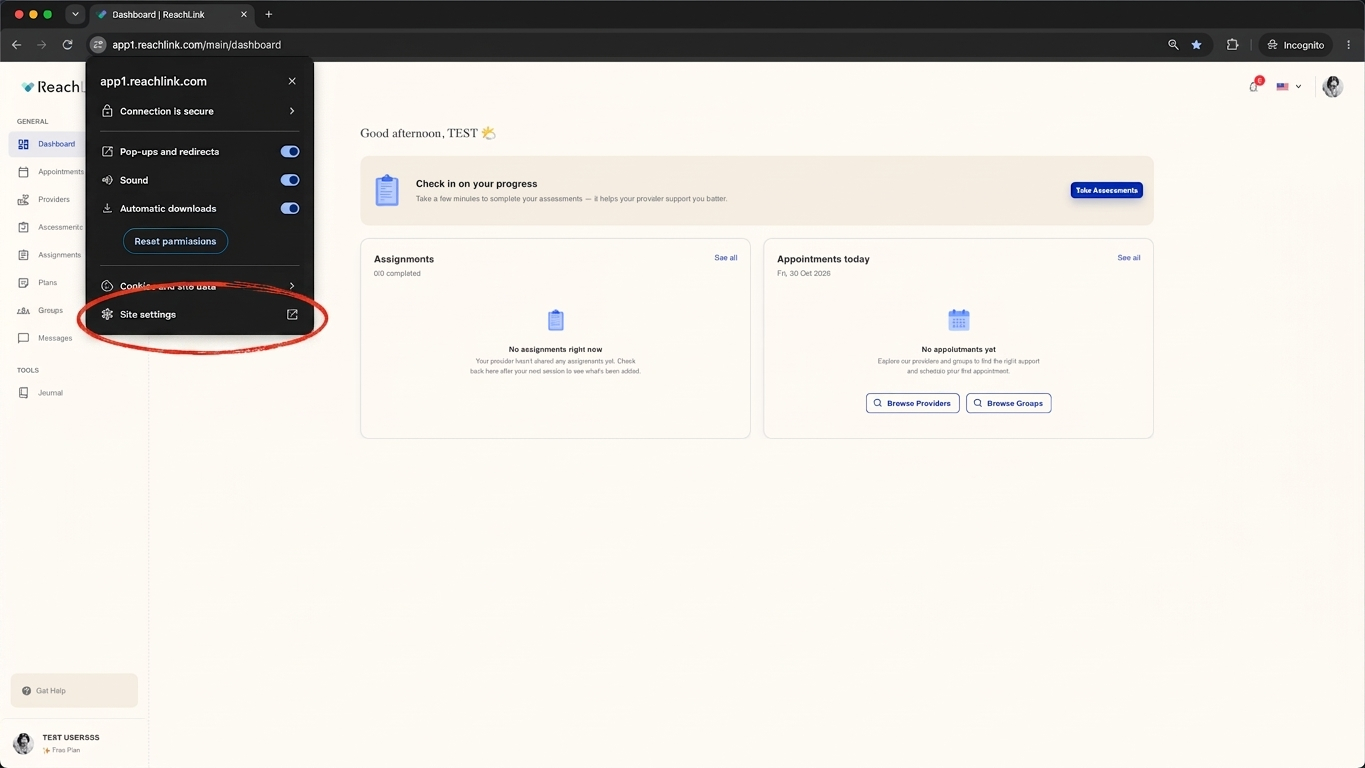
1. Enable Pop-Ups & Redirects
In your browser settings, allow:
- Pop-ups
- Redirects
- Third-party cookies (if applicable)
Chrome example:
Settings → Privacy & Security → Site Settings → Pop-ups and Redirects → Allow ReachLink
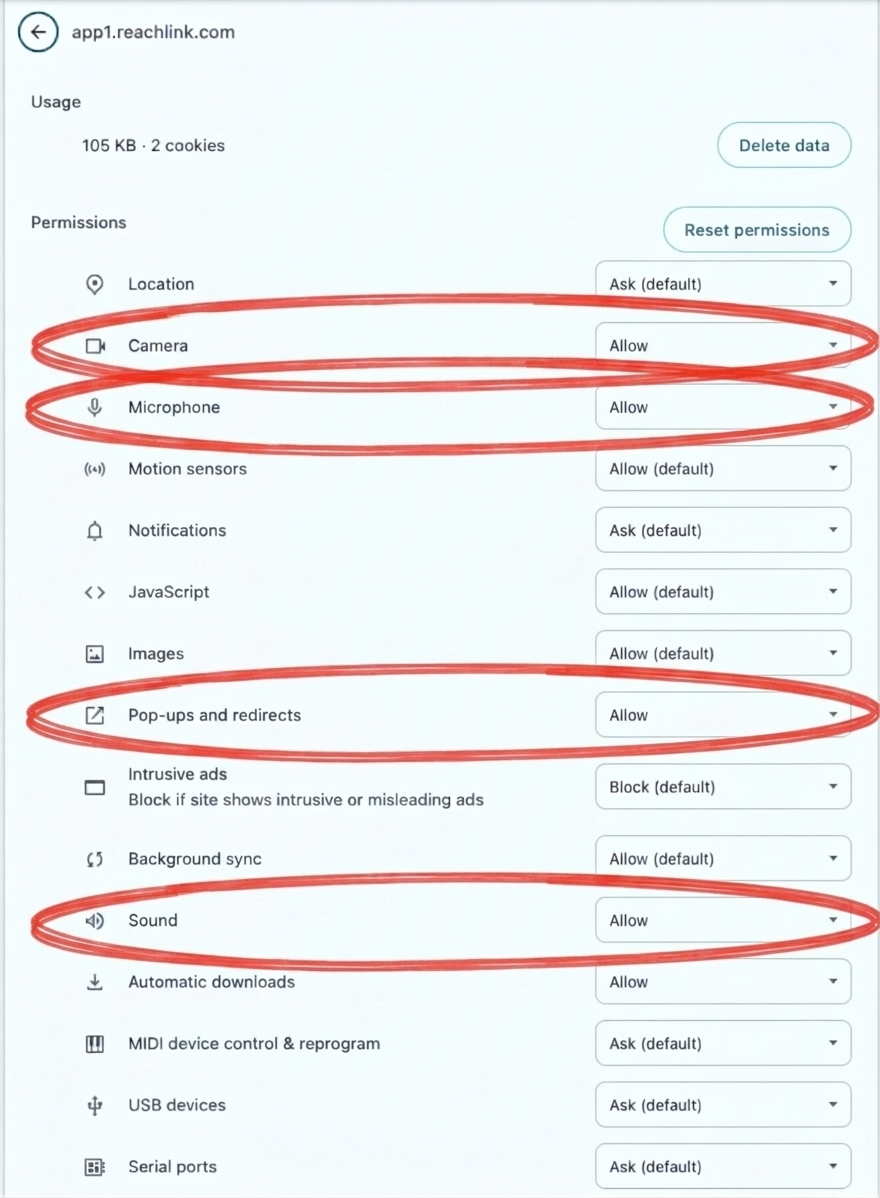
2. Verify Permissions
Make sure your browser/device is allowing camera, microphone, and autoplay for ReachLink.
3. Refresh and Try Again
After adjusting settings:
- Refresh the page
- Or open the session in a new tab
4. Restart Browser or App
Fully close and reopen your browser or the ReachLink mobile app.
Problem 3: "I Get an Error Message When Trying to Join"
Error messages typically mean:
- Permissions are blocked
- Your browser or app is outdated
- Your system does not meet video requirements
Try This
- Update your device's operating system
- Update your browser or the ReachLink app
- Restart your device
- Ensure no other video apps (Zoom, FaceTime) are running
- Try switching to Google Chrome (recommended)
Problem 4: "I Started a Phone Call, but My Phone Never Rang"
Most Common Cause
Your phone silenced or blocked the call because it came from a number it didn't recognize.
Try This
- Save 850-446-8707 in your contacts as ReachLink.
- Check your blocked or silenced calls (iPhone Silence Unknown Callers, Android call screening, or any spam-blocking app).
- Click Call again on the status page.
ReachLink retries automatically up to three times before showing Unable to reach you.
Device & Connection Best Practices
To avoid joining issues, ReachLink recommends:
✔ Keep Everything Updated
- Latest device operating system
- Latest version of your browser (Chrome recommended)
- Latest version of the ReachLink app (if on mobile)
✔ Have a Strong, Stable Connection
- Reliable WiFi or wired connection
- Move closer to your router
- Avoid using public WiFi
✔ Keep Your Device Charged
Low battery modes can limit device performance.
If You Still Cannot Join
If your session is starting soon (urgent):
📞 Call live support immediately at 833-588-7992 (call only — this number doesn't accept texts)
If you do not have an active session (non-urgent):
📧 Email support@reachlink.com
📱 In the app: Tap "Get Help"
 Trusted User: How do I add a guest to my sessions?